
Creating API endpoints that perform CRUD operations on a database is challenging
especially, building API endpoints that are secured, performant and scalable takes multiple iterations
However, Azure Data API builder (DAB) overcomes these difficulties by supporting developers with a simple no-code way to expose DB objects
Today, we will discuss how to expose Azure SQL DB objects using DAB
Prerequisites:
Supported DB:
We will use an Azure SQL DB which is one of the many database types supported by DAB
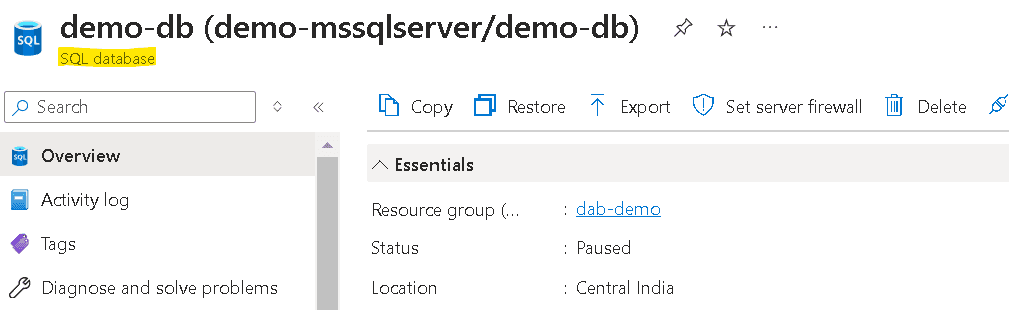
I deployed the following Sample DB for demo purposes
Keep the credentials handy, we will need them later
Install required tools:
Now that we have the database that needs to be exposed, we will install the required tools
Install the Microsoft.DataApiBuilder CLI as a .NET tool using the following command
dotnet tool install --global Microsoft.DataApiBuilderverify that dab is installed by issuing the following command
dab versionSetup Config Files:
DAB operates on a single config file, we will initiate the file using the command
dab init --database-type "mssql" --host-mode "Development" --connection-string "Server=demo-mssqlserver.database.windows.net;User Id=admin_sql;Database=demo-db;Password={your_password};TrustServerCertificate=True;Encrypt=True;"dab-config.json will be created
Let's add a new database entity to the configuration file
dab add ProductCategory --source "Production.ProductCategory" --permissions "anonymous:*"new entity: ProductCategory with source: Production.ProductCategory and permissions: anonymous:* will be added in config
the following snippet got added to the config
"entities": {
    "ProductCategory": {
      "source": {
        "object": "Production.ProductCategory",
        "type": "table"
      },
      "graphql": {
        "enabled": true,
        "type": {
          "singular": "ProductCategory",
          "plural": "ProductCategories"
        }
      },
      "rest": {
        "enabled": true
      },
      "permissions": [
        {
          "role": "anonymous",
          "actions": [
            {
              "action": "*"
            }
          ]
        }
      ]
    }
  }
Start DAB:
Start the DAB using the following command
dab start
DAB has started on my local - http://localhost:5000 Open the URL in browser,a JSON similar to the following appears mentioning if the DAB service is healthy
{
  "status": "Healthy",
  "version": "1.2.10",
  "app-name": "dab_oss_1.2.10"
}
another useful feature is the built-in swagger support - launch http://localhost:5000/swagger/index.html to get the swagger
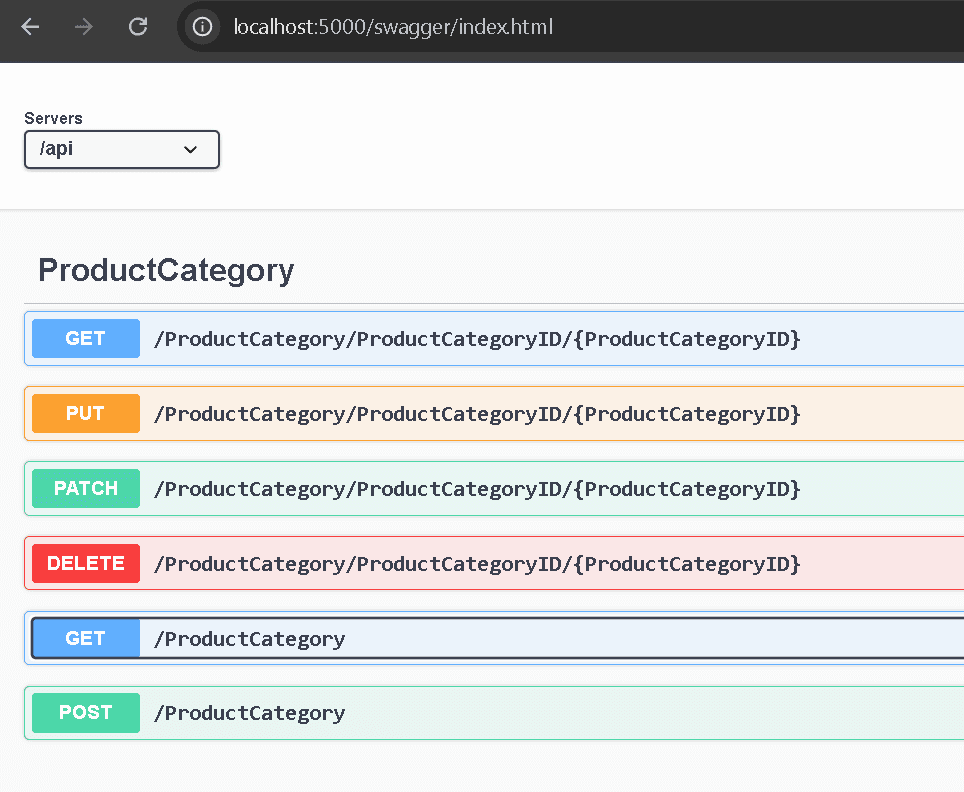
Let's call the get endpoint using the "Try It Out" option in Swagger http://localhost:5000/api/ProductCategory
Received a successful response
{
  "value": [
    {
      "ProductCategoryID": 1,
      "Name": "Bikes",
      "rowguid": "CFBDA25C-DF71-47A7-B81B-64EE161AA37C",
      "ModifiedDate": "2024-09-04T17:31:39.290"
    },
    {
      "ProductCategoryID": 2,
      "Name": "Accessories",
      "rowguid": "2BE3BE36-D9A2-4EEE-B593-ED895D97C2A6",
      "ModifiedDate": "2024-09-04T17:32:06.297"
    }
  ]
}
The results are in alignment with the query output
SELECT * FROM [Production].[ProductCategory]

Stop DAB:
Once the work is done Press Ctrl+C in the command prompt to shut down DAB
Summary:
With just a single config file and zero code, we could successfully expose an API for performing CRUD operations on a database Once the database object is exposed,it can be accessed conveniently on any platform, using any language DAB can reduce development time drastically and provides a simplified,standardized and secure way of exposing database objects.
Thanks for reading, Goodbye until next week!